
Master Touch Typing with Tux Typing: The #1 Free Open-Source Tutor
Looking for a safe, ad-free, and fun way to teach kids typing? Tux Typing combines arcade-style games with professional drills to build muscle memory without digital distractions.
50,000+ Schools
Engaging Games That Build Real Skills
Tux Typing transforms repetitive keyboard drills into an exciting arcade adventure. Each game mode is designed to improve different aspects of touch typing.
Comprehensive Typing Drills
Beyond games, Tux Typing includes a structured Lessons Mode. It guides beginners from home-row basics to full-sentence fluency, following a professional touch-typing curriculum suitable for school standards.
Getting Started in 3 Simple Steps
Don’t let the retro interface fool you. Starting your first lesson is quick and intuitive. Here is how to begin.
Select Your Mode
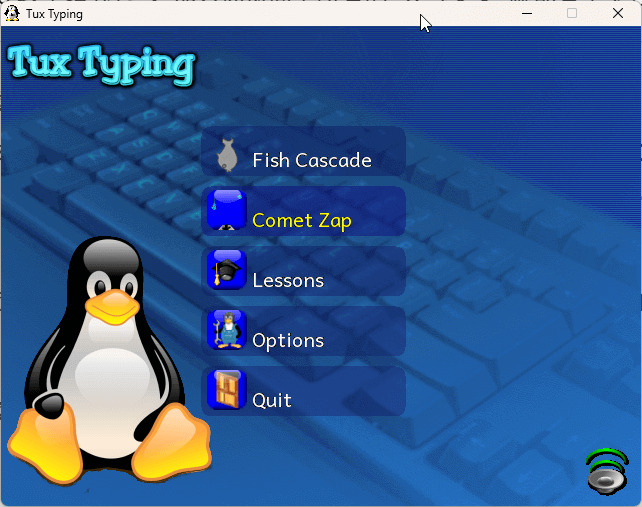
Launch the app and choose between Fish Cascade (for fun speed drills) or Lesson Mode (for structured learning).
Pick Your Difficulty
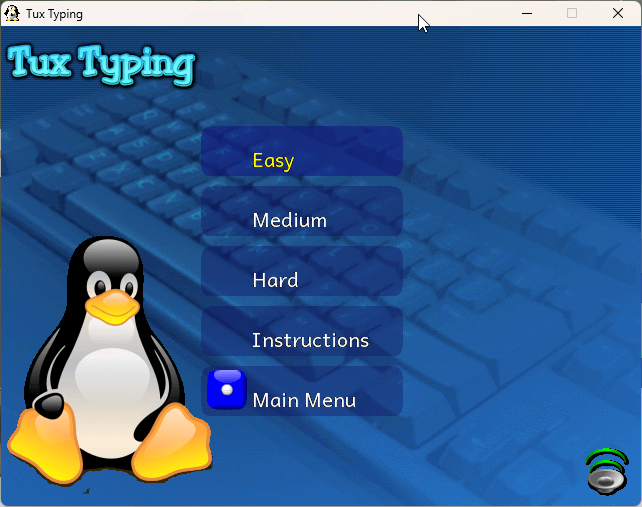
From “Alphabet” for toddlers to “Project Gutenberg” for advanced users, select a word list that matches the student’s level.
Track Your Progress
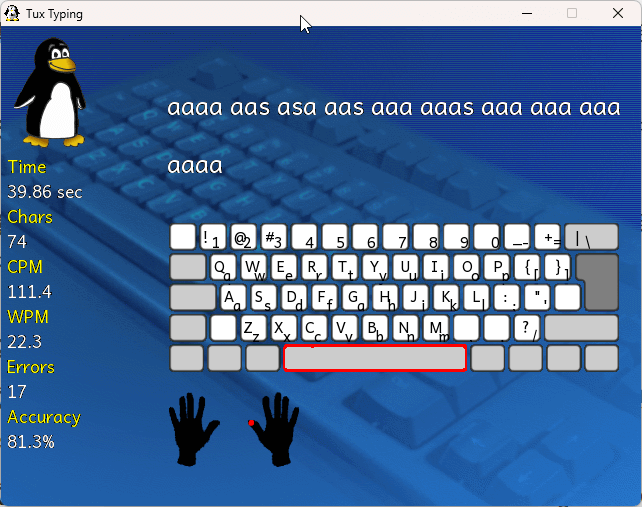
Keep an eye on the WPM (Words Per Minute) and accuracy percentage. Practice 15 minutes a day for the best results!
First time using the software? Read our detailed Installation Guide →
The Gold Standard for Privacy-Conscious Education
Modern typing websites are often cluttered with trackers, distracting ads, and subscription prompts. Tux Typing takes a different approach by prioritizing the student’s focus and safety.
Zero Data Tracking
No accounts, no emails, and no personal data collection. Perfectly compliant with COPPA and GDPR.
100% Offline Access
No internet? No problem. Install it once and use it anywhere—ideal for schools with restricted connectivity.
Distraction-Free Learning
Free from “Freemium” interruptions and flashing banners, allowing children to build muscle memory faster.
Why Parents Prefer Tux Typing
| Feature | Tux Typing | Web Apps |
|---|---|---|
| Cost | FREE | Subscription |
| Ads | NONE | Annoying |
| Account | NOT REQ. | Mandatory |
| Offline | YES | No |
*Based on 2026 Home Education Standards
More Than a Game: A Foundation for Digital Literacy
In an era of touchscreens, keyboarding remains a critical academic skill. Tux Typing follows a research-based approach to develop proprioception (body position awareness) and fine motor coordination in young learners.
By integrating phonics and vocabulary with rhythmic typing, the software reinforces spelling and language arts standards while students learn to type.
Cognitive Load
Balanced challenge levels to prevent learner frustration.
Home Row Focus
Emphasis on proper finger placement from day one.
How to Teach Typing Effectively
Using the right software is just the beginning. Follow these professional tips to help your child develop healthy habits and lifelong keyboarding skills.
Ergonomics First
Ensure the child’s feet are flat on the floor and elbows are at a 90-degree angle. Good posture prevents fatigue and long-term strain during practice sessions.
Don’t Look Down
The secret to touch typing is muscle memory. Encourage children to keep their eyes on the screen. Tux Typing’s visual cues help reinforce this “blind” typing skill.
Short, Frequent Sessions
Consistency beats intensity. 15 minutes of daily practice with Tux’s games is far more effective than a single 2-hour session once a week.
Want a full 30-day lesson plan for your students?
Platform Compatibility & System Requirements
Tux Typing is built for versatility. Whether you are using a modern Windows 11 desktop, a classroom Chromebook, or an older school PC, our software is optimized for stable performance.
Windows
Full support for Windows 11, 10, 8, and 7. Our latest v1.8.1 includes compatibility patches for modern 64-bit architectures.
macOS
Compatible with macOS Sequoia, Sonoma, and Ventura. Supports both Intel and Apple Silicon (M1/M2/M3) via Rosetta 2.
Chromebook
Optimized for ChromeOS via the Linux (Crostini) container. Essential for school-issued Chromebooks in the USA and Europe.
Processor
1.0 GHz or faster
Memory (RAM)
512 MB Minimum
Disk Space
20 MB Available
License
GPL v2 (Open Source)
APPLE
ORANGE
LEMON
GEOLOGY
BIOLOGY
ASTRONOMY
Tailor the Learning Experience with Custom Word Lists
One of the most powerful features of Tux Typing is its extensibility. You aren’t limited to the built-in lessons. Teachers can create specialized vocabulary lists to align with their weekly curriculum.
-
✔Cross-Curricular Learning: Import spelling bee lists, science terms, or foreign language vocabulary.
-
✔TXT Flexibility: Easily modify the TXT source files to add, remove, or categorize words by difficulty.
-
✔Global Language Support: Add characters and words from various languages to support ESL students.
A Global Tool for a Global Classroom
Tux Typing isn’t just for English speakers. As a community-driven project, it has been translated into over 30 languages, making it accessible to children in diverse linguistic environments across the globe.
Open Source Heritage
Tux Typing is a proud part of the Tux4Kids project. It is developed and maintained by volunteers who believe that high-quality educational software should be a universal right, not a paid privilege.
What’s New: Verified full compatibility with macOS Sequoia and the latest Windows 11 KB updates. Added 5 new word lists for 2026 science vocabulary.
Frequently Asked Questions
Is Tux Typing really free for schools?
Yes, absolutely. Tux Typing is released under the GNU General Public License (GPL). You can install it on an unlimited number of computers in a school or organization without paying a penny.
Is it safe to download in 2026?
Tux Typing is open-source, meaning its code is transparent and audited by the community. Unlike many “freeware” typing sites, it contains no spyware, malware, or trackers. Our hosted files are scanned weekly.
Does it work on Chromebooks?
While there is no native ChromeOS app, you can easily run Tux Typing by enabling the “Linux Development Environment” in your Chromebook settings. Check our detailed guide for step-by-step instructions.
“Tux Typing has been a staple in my elementary computer lab for years. It’s the only tool that keeps the kids engaged without showing them a single predatory ad. A must-have for homeschooling!”
Ready to Start the Typing Adventure?
Download Tux Typing today and give your students a safe, fun, and effective way to master the keyboard. No hidden fees, no trackers—just pure learning.